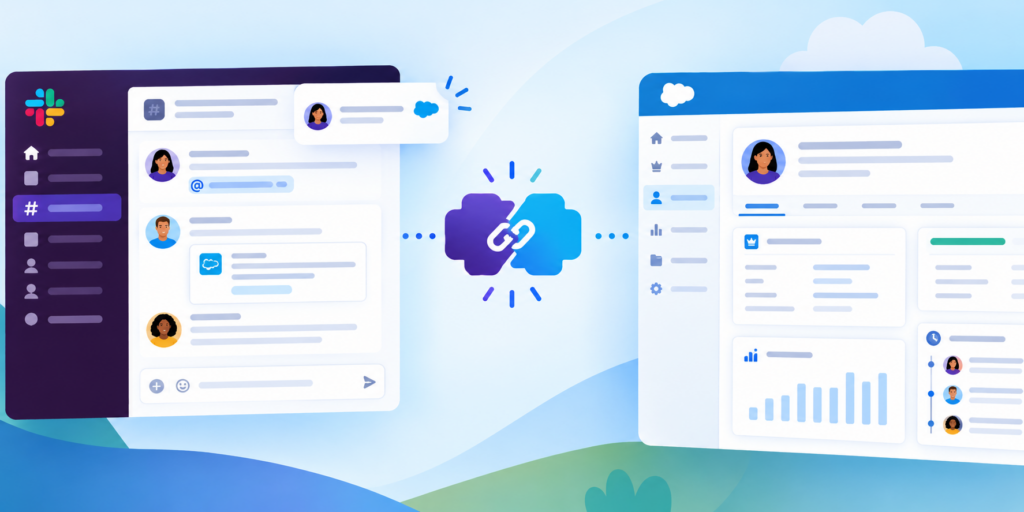

Slackbot can now read your Salesforce records, update them, and answer questions next to the record in Lightning.
Additionally, the settings that decide what it sees, what it can change, and what it costs belong to you.
Moreover, you should set them before anyone on your team asks it a question.
Additionally, we checked every source here in late September and re-checked Surfaces on October 8.
What Slackbot can do with your Salesforce data now
Slack’s Dreamforce post lists Slackbot in Lightning Experience and Slackforce Surfaces as available now. For someone who runs an org, Slackbot now reaches your data in three ways.
- In Slack, your team can ask Slackbot to find, create, and update Salesforce records and attach files. That needs Business (new version) or an Enterprise plan, plus a connected org.
- Inside Salesforce, there’s a Slackbot chat panel next to the record. Slack gives two examples. A sales manager flags pipeline deals that have gone quiet for more than two weeks. A service agent pulls shipping status and order history on a delayed-order case and has Slackbot draft a resolution.
- Slackbot can build Slackforce Surfaces, shared views of your Salesforce data that your team works from together.
It’s the same assistant in both places. Salesforce says it’s powered by Claude, that LLM providers don’t have access to customer data, and that customer data is never used to train large language models.
Salesforce also describes Agentforce Coworker as an AI teammate in the Lightning interface. We have not found any Salesforce explanation of how Coworker and the Slackbot panel fit together. Ask your account team before you license either one.
One of our clients stopped opening Salesforce to update records. They tell Slackbot what changed instead. If a workflow can be automated with a Slackbot skill, they’ve built one. Additionally, they keep adding more. So far their updates happen faster, and they spend less time designing screens. They’re on Enterprise+, so nobody runs into a weekly message cap.
Slackbot sees what your users can see
Slackbot can only access Salesforce data the user has permission to view or edit. Profiles, permission sets, and sharing rules carry straight through.
This is reassuring, as long as your sharing model is what you think it is.
A profile that’s a little too broad or a sharing rule that’s a little too open usually stays hidden.
Until someone builds the report that would show it, the issue remains unseen.
Here’s what we’d do before connecting an org. Pick two real users, say a rep and a support agent. Walk through what their profiles, permission sets, and sharing rules let them see. If anything surprises you, fix that first.
Each connected org has its own switch, called Allow Slackbot to access data from this organization. Keep it off, or turn it off, until that check is done.
Decide what it’s allowed to change
Every change Slackbot makes from Slack gets reviewed and approved by the user before it saves. It’s tempting to treat that as your safety net.
The way we see it, approval catches Slackbot getting one request wrong. Deciding which parts of Salesforce should be editable from a chat window is a separate call, and it belongs to an admin. Slack gives you two levers for it, both in the org connection settings.
The first is object scope. The setting Allow Slackbot to create and update records has three options. We’d start with some objects only. Pick the few your team updates every day, then add more once you’ve seen how people actually use it.
The second lever is newer. In September, Slack added a way for owners and admins to limit Slackbot to updating only the fields on the record layout. Without it, Slackbot can update any field the member can edit. The admin page calls the setting Restrict Slackbot edits to assigned layouts. Turn it on, and your page layouts become the list of fields Slackbot can write. A field someone forgot to take off a layout is now a field a chat window can change. Review your layouts and field-level security before you allow writes.
These are Slack’s settings. We couldn’t find anything saying whether they also apply to the Slackbot panel in Lightning. Until someone confirms they do, don’t count on them there.
Know what it costs before anyone starts asking
The Slack plan you already pay for decides the experience. Slackbot is included in Bushiness and Enterprise+, in both Slack and Lightning. The difference is in the limits.
As of late September, each Bushiness member can send Slackbot 15 messages a week in Slack. Enterprise+ members aren’t subject to weekly or lifetime message limits. As of September 24, 2026, Slack’s pricing page lists Bushiness at $15 per user per month billed annually, and Enterprise+ is priced through sales.
Fifteen messages a week is three a work day. That’s enough to try Slackbot. It won’t carry a team that updates records through Slackbot every day.
Past the allowance, the route is Flex Credits. Slack also states Salesforce customers who aren’t on Slack can use Slackbot in Lightning through Flex Credits without buying Slackbot separately. Three billing rules from Salesforce Help matter before you switch them on.
- Every turn bills at least one Standard Action, even when no tool runs. A “thanks” or a “try again” still costs something.
- Each unique tool bills once per turn. Building a report or dashboard and reading Salesforce files count as Advanced Actions, billed on top of the Standard Action.
- Flex Credits billing works only for connections to production orgs.
If you’re on Slack, turning Flex Credits on takes two people, a Slack workspace owner or admin and a Salesforce admin. We couldn’t find how an org with no Slack workspace turns them on. Salesforce says the cost of each credit is set by your contract, and we found no published rate for each action. Ask your account team for that rate before anyone turns credits on, and plan any pilot knowing the billing runs against production.
Shared views and shared skills need an owner.
Surfaces and skill sets are the two features most likely to turn into something your team depends on.
We like Surfaces for pipeline reviews. Everyone working from the same view beats a screenshot in a thread. When they launched, though, the views didn’t refresh on their own. Salesforce’s page still says live data begins rolling out in October. Until it reaches your workspace, treat a Surface like an exported report. Someone should own each Surface your team decides from and check that it’s current.
Skill sets raise the same question from a different side. Slack now lets you bundle up to 25 Slackbot skills into one set and share it. Your best rep’s way of prepping a renewal can become everyone’s way, because you build the set once and share it. Once it’s shared, it’s a process. Somebody should own it, review it, and retire it when the work changes. Slack’s new skill management dashboard lets owners and admins decide whether members can share skills outside the workspace.
What this means for your team
Slack is useful today, and the setup decisions are small if you make them before people start using it. This week, pick two real users and check what they can see. Choose the few objects Slackbot may edit, and decide on the layout restriction. Compare who’s on Bushiness with how often they’d really use Slackbot, and get the Flex Credits rate in writing before anyone turns credits on. Then name an owner for shared skills.
If you’d like a second set of eyes, our team can run a free health check on your org’s sharing and access before you connect Slackbot. Book a time with us.